
Introducing Apple Pay. Your iPhone is now your GIFTO Gift Card.


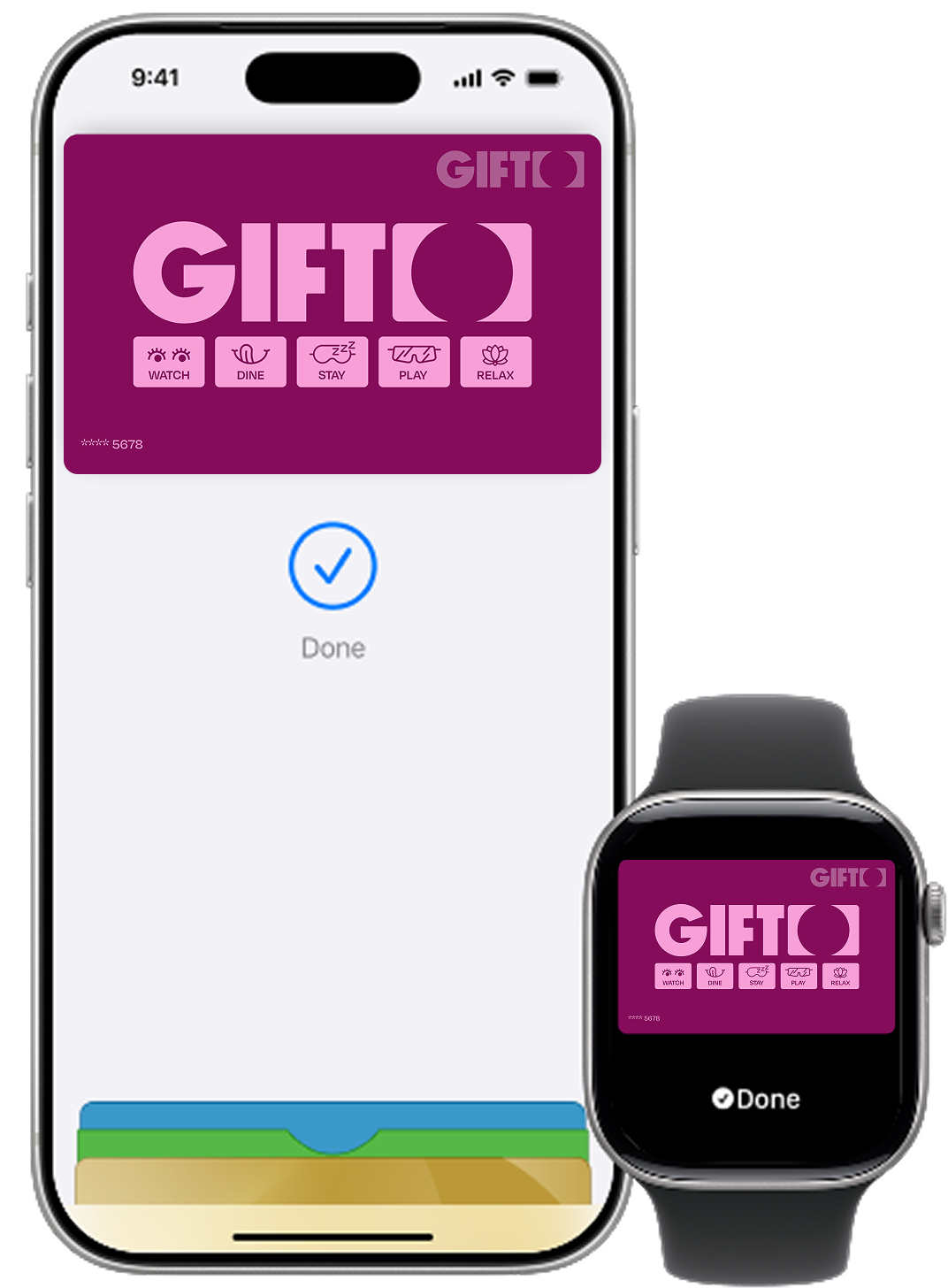
How to set your card in the GIFTO Gift Card app and add it to Apple Wallet.
Introducing Apple Pay. Your iPhone is now your wallet
Apple Pay lets you use your GIFTO in stores, online and in apps using your iPhone or Apple Watch — no physical card needed.
Double-click the side button, glance at your screen, then hold the iPhone near the reader.
Double-click the side button and hold your Apple Watch near the reader.
Apple Pay is also the safer and faster way to pay online and in apps because you no longer have to create an account or fill out lengthy forms. See here for help to Set Up Apple Pay on your device.
You can use your GIFTO with Apple Pay wherever contactless payments are accepted at participating venues.
To find out more go to gifto.gift/venues

Apple Pay FAQs
You can use Apple Pay to make payments at any merchant where contactless payments are accepted. Simply look for the contactless symbol or Apple Pay mark. You may also use Apple Pay in-app and on the web with Safari when you see the “Buy with Apple Pay” button or Apple Pay as a payment option.
All cards stored in Apple Pay are allocated a Device Account Number. This unique number ensures your payment information isn’t stored on your device or shared with the merchant when making a payment. You can find your Device Account Number by opening the Wallet app, selecting your card and tapping the (i) symbol in the bottom righter corner.
Apple Pay can be used with all GIFTO Gift Cards.
To learn more about Apple Pay, including supported devices and security features, visit the Apple Pay website.
Apple Pay works with iPhone 6 and later in stores, apps, and websites in Safari; with Apple Watch in stores and apps (requires iPhone 6 or later); For a list of compatible Apple Pay devices, see here.