
Introducing Apple Pay. Your iPhone is now your GIFTO Gift Card.


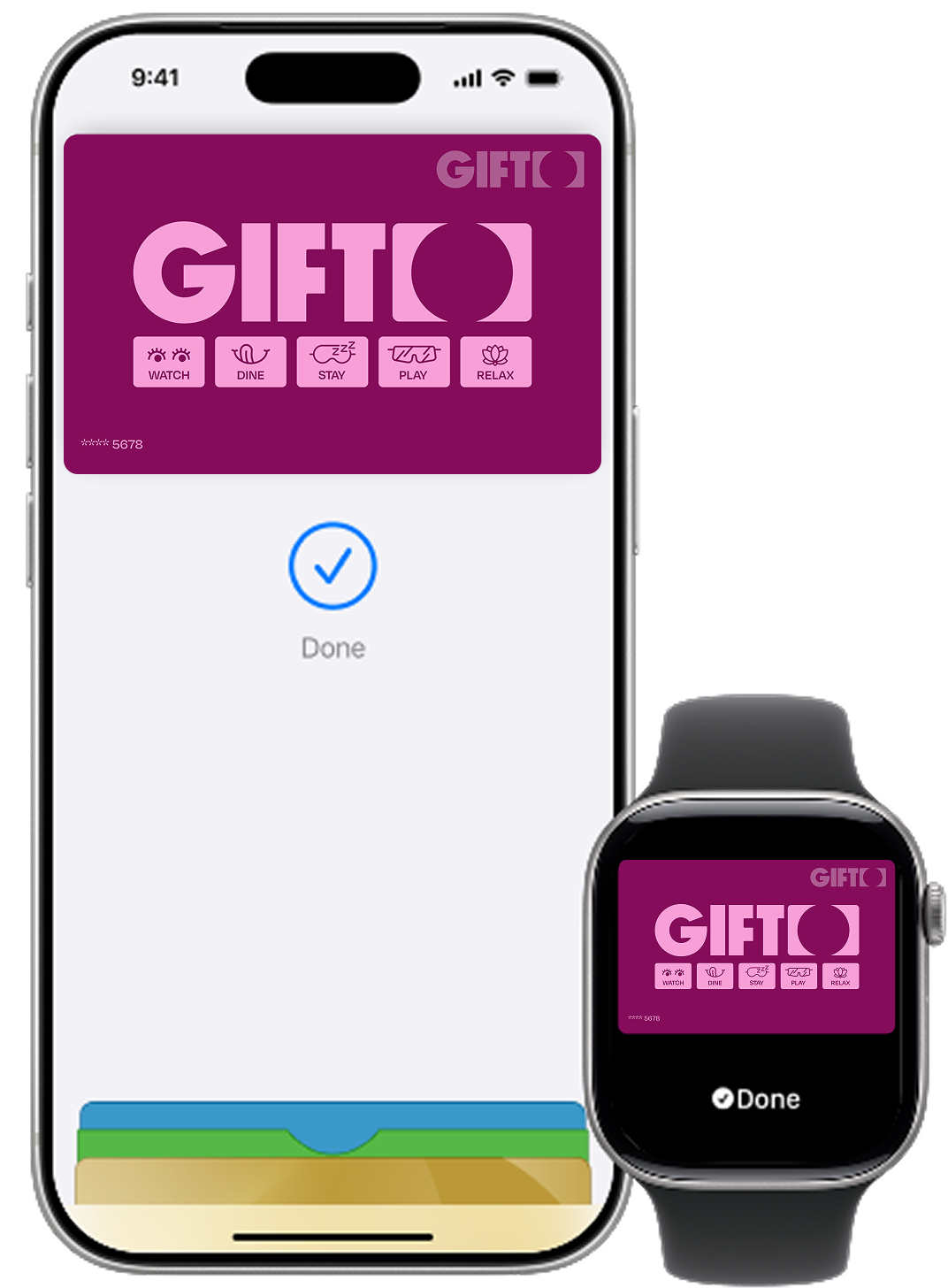
How to set your card in the GIFTO Gift Card app and add it to Apple Wallet.
Introducing Apple Pay. Your iPhone is now your wallet
Apple Pay lets you use your GIFTO in venues, and using your iPhone or Apple Watch. No physical card needed.
To pay with Face ID on iPhone
Double-click the side button, glance at your screen, then hold the iPhone near the reader.
To pay with Apple Watch
Double-click the side button and hold your Apple Watch near the reader.
Apple Pay is also the safer and faster way to pay online and in apps because you no longer have to create an account or fill out lengthy forms. See here for help to Set Up Apple Pay on your device.
You can use your GIFTO with Apple Pay wherever contactless payments are accepted at participating venues.
To find out more go to gifto.gift/venues

Apple Pay FAQs
Tap the link in the SMS or email you received with your GIFTO, follow the prompts in the GIFTO app, then tap Add to Apple Wallet. You may be asked to verify your identity via SMS or email as part of the setup. If you have an Apple Watch, you can add your card there too at the end.
Any iPhone or Apple Watch that supports Apple Pay. That covers iPhone 6 and later, and Apple Watch Series 1 and later. You’ll need to be signed in to iCloud and running a recent version of iOS or watchOS.
Open Apple Wallet, tap your GIFTO card, tap the More button, then Card Details, then Remove This Card. You can re-add it later from the GIFTO app whenever you like.
The easiest way is to use a browser where you have Apple Pay or Google Pay enabled with your GIFTO card.
If you’re using another device, you can also pay with the Card Number like you would a normal debit/credit card.
– Simply visit the “Cards” section in the App, select the card you wish to view the details, and then tap on the card.
– It will then flip around and reveal the Card Number, CVV, Expiry and name on the card directly within the App.
– This can be typed in as a normal debit card online to complete your transaction.
Once added to your Apple Pay or Google Pay wallet on your phone or watch, simply “tap and pay” like you normally would.